
FL Studio Gopher AI just changed one of the most boring jobs in beatmaking. You can now type “Route 808 Kick to Mixer track 7” and watch it happen. No hunting through Channel settings, no dragging, no forgotten channels stuck on the Master.
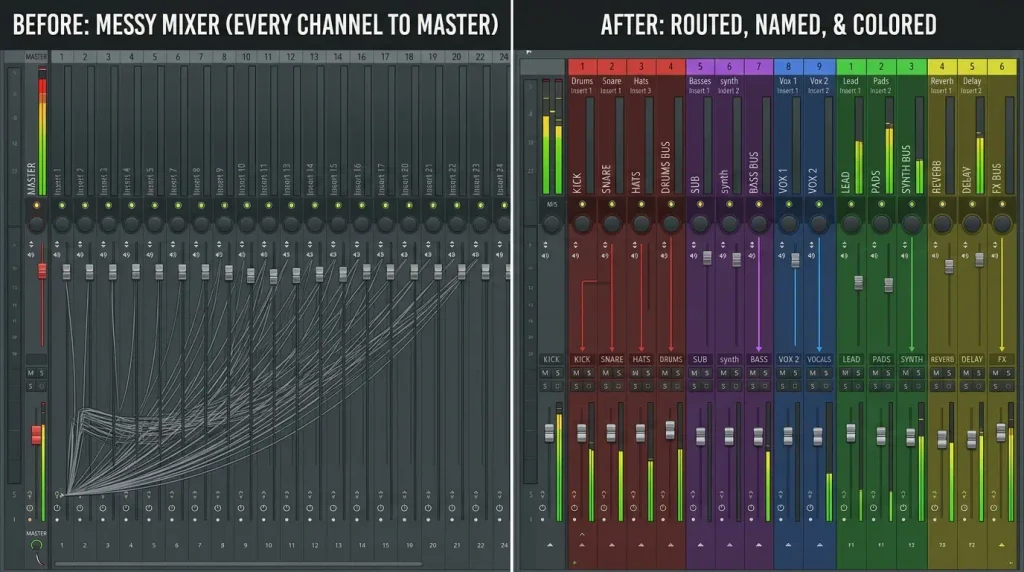
Mixer routing is the unglamorous foundation of every good mix. When it is messy, your bus processing breaks, your sidechain fails and cleanup eats the time you wanted to spend making music.
This guide shows you how to set up the FL Studio Gopher AI assistant, gives you seven proven routing workflows with copy-ready prompts, and explains exactly what Gopher still cannot do. By the end, you will route a full session in minutes and spend your energy where it matters: on the sound.
What Is FL Studio Gopher AI?
FL Studio Gopher AI is the assistant built into the DAW. You talk to it in plain English, and it either answers your question or, with your permission, makes changes to your project.
From Help Chatbot to Production Assistant
Gopher first arrived in FL Studio 2025 as a help chatbot trained on the manual. It could explain features, but you still had to do the clicking yourself.
FL Studio 2026 changed that. According to MusicRadar’s report on the agentic upgrade, Gopher can now access your project and carry out tasks such as setting track levels and routing mixer channels. In other words, FL Studio Gopher AI went from a tutor to an assistant engineer.
What Gopher Can Control in the Mixer
The official Gopher Control documentation lists what the assistant can currently do in the Mixer:
- Route channels to mixer tracks, and route one mixer track to another.
- Set volume and pan on any track.
- Mute and solo tracks.
- Rename and recolor tracks.
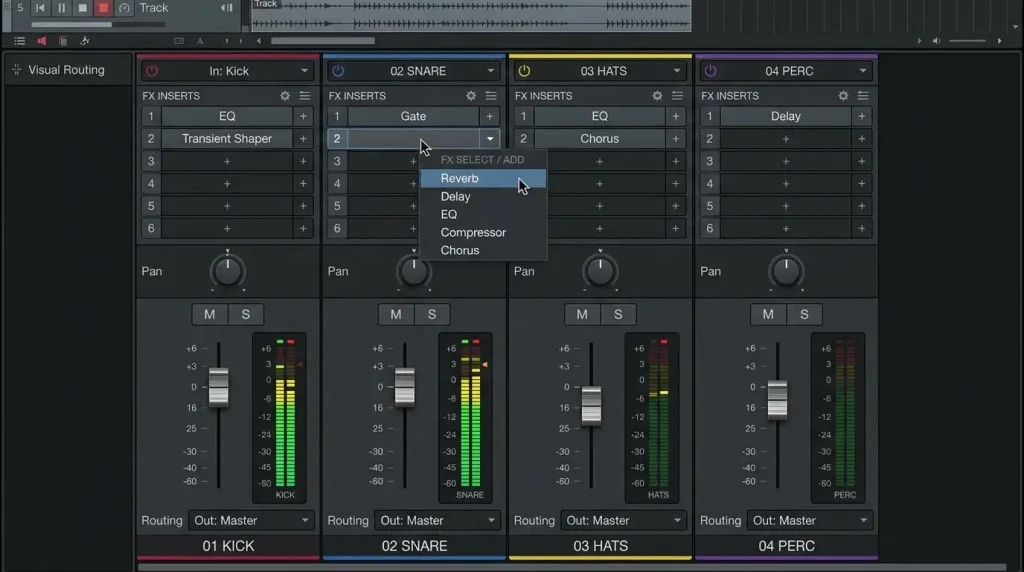
- Add or remove plugins, including placing them in specific slots.
- Reset tracks back to a clean state.
Outside the Mixer, it can also add, rename and color Channel Rack channels, change the tempo, open windows and quantize notes. Image-Line labels these features experimental, so expect them to grow and change. For a wider look at where Gopher fits, see our guide to essential AI music tools.
Privacy and Permissions
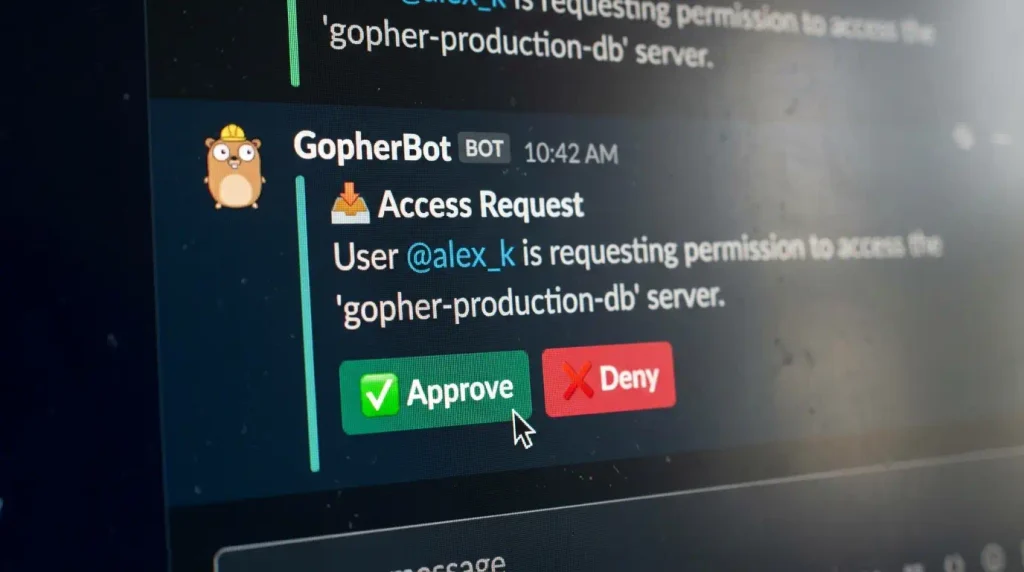
FL Studio Gopher AI does not run quietly in the background. It only becomes active when you open its tab and ask for something. Before it touches your project, it shows an Approve or Deny prompt, and nothing happens until you approve.
Image-Line has also stated that Gopher does not train its AI on your project data, which matters if you work on unreleased client music.
Why Mixer Routing Is the Perfect Job for AI
Not every studio task should be handed to a machine. Routing is different, and it is where FL Studio Gopher AI shines. It is the one job where AI help is almost pure upside.
Routing Is Repetitive, Not Creative
Sending twelve drum sounds to twelve inserts takes dozens of clicks and zero artistic judgment. That is exactly the kind of work an assistant should handle. Your taste is needed for the mix decisions that come after.
Small Mistakes Cause Big Mix Problems
One hi-hat left on the Master skips your drum bus compression. One vocal double routed to the wrong track misses its de-esser. These errors are easy to make at 2am and hard to spot later. Clear, prompt-based routing reduces them.
It Teaches Beginners Good Habits
New producers often mix everything on the Master because routing feels intimidating. Using FL Studio Gopher AI to build a proper bus structure shows them what an organized session looks like, and they learn the logic by watching it happen.
How to Set Up FL Studio Gopher AI for Mixer Routing
Getting started with FL Studio Gopher AI takes only a few minutes. Follow these steps before you try any workflow below.
Update to FL Studio 2026
The project-control version of Gopher arrived with FL Studio 2026. FL Studio includes lifetime free updates, so if you own a license, download the latest version from your Image-Line account. Check your edition’s feature list too, as features can vary between editions.
Open the Gopher Tab
Open the Gopher tab and type a simple test such as “Tell me about my project?” If Gopher describes your channels and mixer, it can see your session and you are ready to go.
Approve Project Access
The first time you ask for a change, Gopher displays an Approve or Deny prompt under your message. Approve it to let the change go through. Read each request before approving, especially on big sessions.
Name Your Channels First
This is the secret most people skip. Gopher works with the names in your project, so “Kick” and “Snare” are far easier to target than “Sampler #4”. Spend one minute naming channels, or ask Gopher to rename them for you, before you start routing.
New to the Channel Rack and Mixer? Learn the basics first with our tutorial to finish your first beat in FL Studio.
7 Proven FL Studio Gopher AI Routing Workflows
Here is where FL Studio Gopher AI saves real time. Each workflow includes example prompts you can adapt. Change the names and numbers to match your session.
1. Route Single Channels to Specific Tracks
Start with the simplest command. It is the same format Image-Line uses in its own examples.
“Route 808 Kick to Mixer track 7”
Use this when you add a new sound mid-session and want it on a dedicated insert straight away.
2. Route a Whole Drum Kit in One Go
Instead of routing sounds one by one, describe the whole group:
“Route Kick to track 1, Snare to track 2, Hi Hat to track 3, Open Hat to track 4 and Perc to track 5”
If Gopher handles part of the list, simply ask for the rest in a follow-up message. Long lists are a great test of how FL Studio Gopher AI handles multi-step requests in your build.
3. Build a Drum Bus
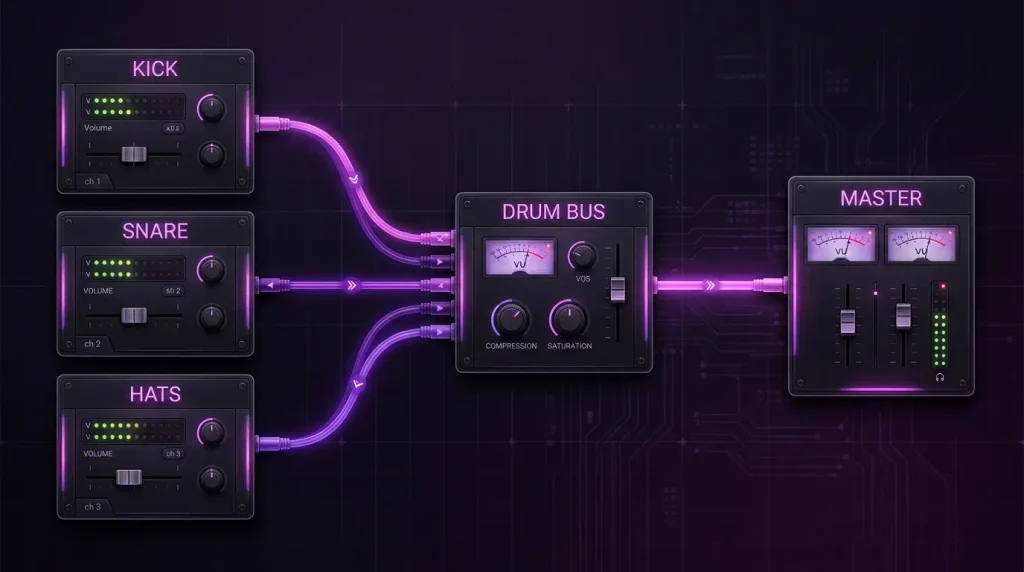
Bus routing sends several tracks into one group track, so you can compress and EQ them together. Gopher can route mixer tracks to other mixer tracks:
“Route track 1 to track 10” “Route track 2 to track 10” “Rename track 10 to Drum Bus”
Afterward, open the Mixer and confirm each drum track now feeds the bus and no longer goes straight to the Master. Once the bus is in place, set up ducking by hand using our advanced sidechain compression guide.
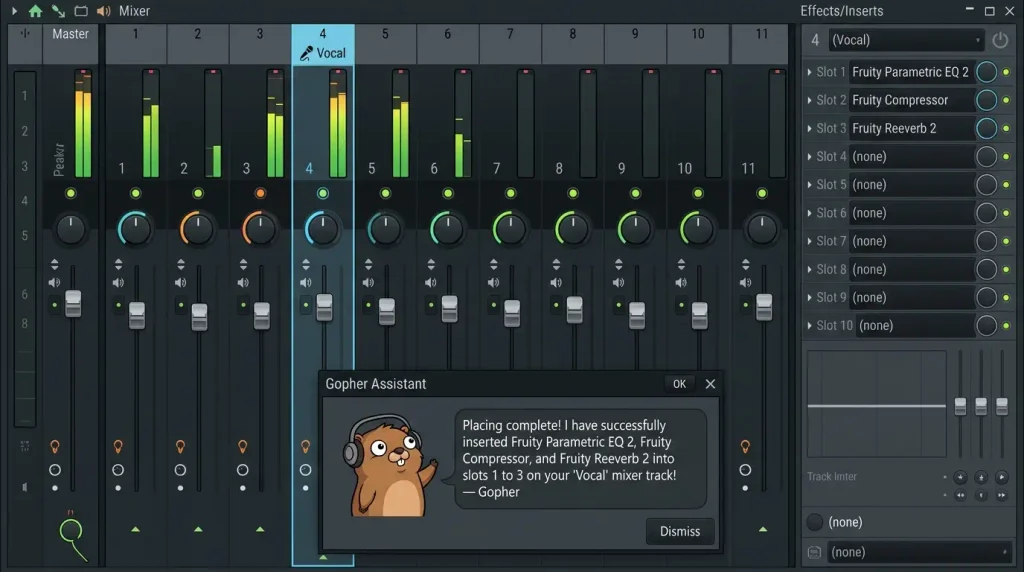
4. Load a Vocal Chain by Slot
Gopher can add plugins to specific slots, which makes building a starting chain fast:
“Add Fruity Parametric EQ 2 to track 12, slot 1” “Add Fruity Compressor to track 12, slot 2” “Add Fruity Reeverb 2 to track 12, slot 3”
You still dial in the settings by ear. FL Studio Gopher AI handles the loading so you go straight to the listening.
5. Set a Rough Balance
Before detailed mixing, a quick static balance helps you hear the arrangement clearly:
“Set Mixer Track 4 level to 50%” “Pan track 6 slightly left”
Treat these as starting points. A rough balance from FL Studio Gopher AI gets you moving, but your ears make the final call.
6. Name and Color-Code the Session
Organized sessions are faster sessions. Ask Gopher to label and color everything:
“Rename track 1 to Kick and color it red” “Color tracks 1 to 5 red and tracks 6 to 9 blue”
Consistent colors (drums red, bass orange, music blue, vocals green) let you read a mixer at a glance.
7. Reset and Rebuild
Inherited a messy project or a collab file? Clear it out and start over cleanly:
“Remove all plugins from track 2” “Reset Mixer track 3, 7 and 11”
Save a copy of the project first. Resets are fast, and that is exactly why you want a backup before you run them.
How to Write Prompts Gopher Understands
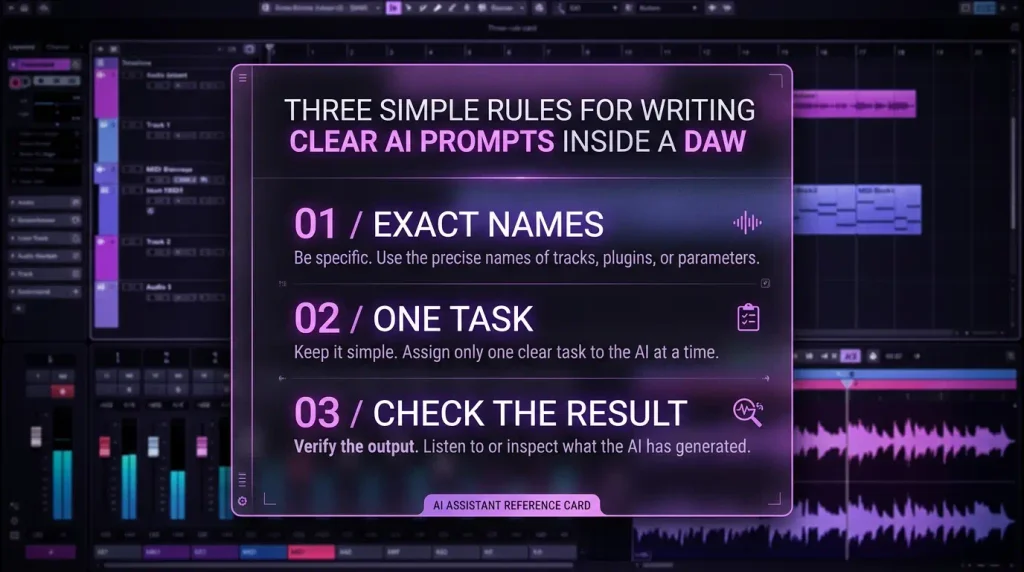
The quality of your results depends on the quality of your prompts. These three rules make FL Studio Gopher AI far more reliable.
Use Exact Names and Numbers
“Route the drums somewhere sensible” leaves too much open. “Route Kick to track 1” leaves nothing open. Use the channel names and track numbers you can see on screen.
One Clear Task per Message
Start with one action per message. Once you know how well your version handles longer requests, combine steps. When something fails, a short prompt is also much easier to fix.
Always Check the Result
Open the Mixer after each change and confirm it worked. This takes seconds and catches errors before they become hidden mix problems.
Good vs Vague Prompts
| Vague Prompt | Clear Prompt |
|---|---|
| “Fix my routing” | “Route Snare to track 2” |
| “Make a drum bus” | “Route tracks 1 to 5 to track 10, then rename track 10 to Drum Bus” |
| “Add some effects to the vocal” | “Add Fruity Compressor to track 12, slot 2” |
| “Clean up the mixer” | “Reset Mixer track 3, 7 and 11” |
| “Turn the hats down” | “Set Mixer Track 3 level to 60%” |
What FL Studio Gopher AI Cannot Do Yet
Knowing the limits saves frustration. Based on Image-Line’s documentation and RouteNote’s FL Studio 2026 breakdown, here is what to keep doing yourself.
No Automation
FL Studio Gopher AI cannot draw automation clips. Filter sweeps, volume rides and build-ups are still your job.
No Melodies or Chords
It will not write melodies or chord progressions for your melodic tracks. It can quantize notes and generate scripts for note operations, but the musical ideas stay with you.
No Preset Picking
Ask for a Rhodes sound and Gopher will open the instrument, but you still choose the preset. Sound selection remains a human decision.
Plugin Control Depends on the Plugin
Gopher can only adjust parameters that a plugin publishes to FL Studio. Many native plugins work well, while some third-party plugins expose little or nothing. Sidechain routing is also not listed in the control documentation, so set it up manually.
Key takeaway: Gopher handles the wiring. You handle the music.
Gopher vs Manual Routing: When to Use Each
FL Studio Gopher AI is a speed tool, not a replacement for understanding your mixer. Knowing how routing works by hand makes you better at directing the assistant. The Mixer Audio Routing page in the FL Studio manual is the best place to learn the manual method.
Comparison Table
| Task | Use Gopher | Do It Manually |
|---|---|---|
| Routing many channels to inserts | Yes, much faster | Slow and repetitive |
| Building group buses | Yes, then verify | Fine for small sessions |
| Naming and coloring tracks | Yes | Tedious |
| Loading a starting plugin chain | Yes | Fine if you have templates |
| Sidechain and send levels | Not documented | Yes |
| EQ, compression and reverb settings | Limited | Yes, by ear |
| Automation | Not supported | Yes |
Jobs to Keep Manual
Keep anything that depends on listening in your own hands: plugin settings, send amounts, sidechain depth and automation. These are where your mix gets its character.
A Pro Beat Routing Template You Can Build With Gopher
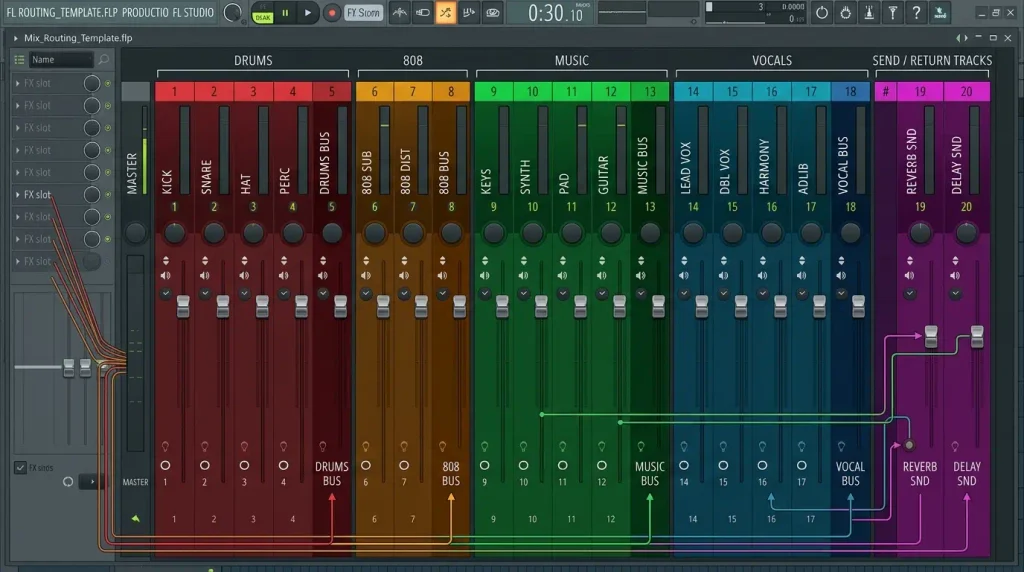
Let us put everything together with FL Studio Gopher AI. This template works for trap, Afrobeat, drill, amapiano and most modern beat styles.
The Bus Layout
- Tracks 1 to 6: Drums (kick, snare, clap, hats, open hat, perc), routed to the Drum Bus
- Track 7: 808
- Tracks 8 to 12: Melodies and chords, routed to the Music Bus
- Tracks 13 to 16: Vocals, routed to the Vocal Bus
- Tracks 20 to 22: Drum Bus, Music Bus, Vocal Bus
- Tracks 23 and 24: Reverb and Delay returns
The Prompt Sequence
- “Route Kick to track 1, Snare to track 2, Clap to track 3, Hi Hat to track 4, Open Hat to track 5 and Perc to track 6”
- “Route 808 to track 7”
- “Route tracks 1 to 6 to track 20 and rename track 20 to Drum Bus”
- “Route tracks 8 to 12 to track 21 and rename track 21 to Music Bus”
- “Route tracks 13 to 16 to track 22 and rename track 22 to Vocal Bus”
- “Rename track 23 to Reverb and track 24 to Delay”
- “Color tracks 1 to 6 and 20 red, track 7 orange, tracks 8 to 12 and 21 blue, tracks 13 to 16 and 22 green”
Save the result as a template, and every new beat starts fully organized.
Finishing the Mix by Ear
With routing done, the creative work begins. Follow our step-by-step beat mixing process and use your new buses to fix frequency masking with surgical EQ across whole groups at once.
5 Routing Mistakes to Avoid
Even with FL Studio Gopher AI helping, a few habits make the difference between a clean session and a confusing one.
- Routing before naming. Generic names lead to wrong targets. Name first, route second.
- Approving without reading. The Approve prompt exists for a reason. Read what Gopher plans to change.
- Forgetting the Master send. When a track feeds a bus, check that it is not also going straight to the Master, or you will get doubled signal.
- Expecting Gopher to mix. It wires the session. It does not make your mix sound good.
- Skipping the backup. Save a version before resets or large routing changes.
Conclusion: Let FL Studio Gopher AI Do the Wiring
Mixer routing used to be the tax you paid before the fun part. With FL Studio Gopher AI, that tax is now a few typed sentences.
Here are the key takeaways:
- Update to FL Studio 2026 and open the Gopher tab to get started.
- Name your channels first so your prompts hit the right targets.
- Use clear prompts with exact names and track numbers.
- Build buses, chains and templates in minutes instead of clicking for half an hour.
- Keep the creative work manual: automation, sidechain, presets and plugin settings.
Treat Gopher as an assistant engineer who never gets tired of routing. Build your template today, then fill it with sounds that deserve a clean mix. Browse the WTMH Studio drum kits and sample packs to start your next beat.
FAQ
What is FL Studio Gopher AI?
It is the AI assistant built into FL Studio. Since FL Studio 2026, it can make changes to your project after you approve them, including routing channels, setting levels, adding plugins and renaming tracks.
Can Gopher route mixer channels automatically?
Yes. Prompts like “Route 808 Kick to Mixer track 7” or “Route track 2 to track 5” route channels and mixer tracks for you after you approve the change.
Is FL Studio Gopher AI free?
FL Studio comes with lifetime free updates, so license owners can download FL Studio 2026. Check Image-Line’s site for the current feature list of your edition.
Does Gopher train on my music?
Image-Line has stated that Gopher does not train its AI on your project data. It also needs your approval before it accesses or changes a project.
Can Gopher set up sidechain compression?
Sidechain routing is not listed in the current control documentation, so set it up manually. Gopher can build the buses and route the tracks first.
Can Gopher write melodies or automation?
No. It cannot draw automation or write melodies and chords. It can quantize notes and generate scripts for note operations.
Will Gopher replace a mixing engineer?
No. It handles setup tasks like routing and organizing. Balancing, EQ, compression and creative effects still need human ears.